← All support articles
Tagging and organizing collections
Rename a collection, assign it to swimmers, and tag it by stroke, race segment and technique.
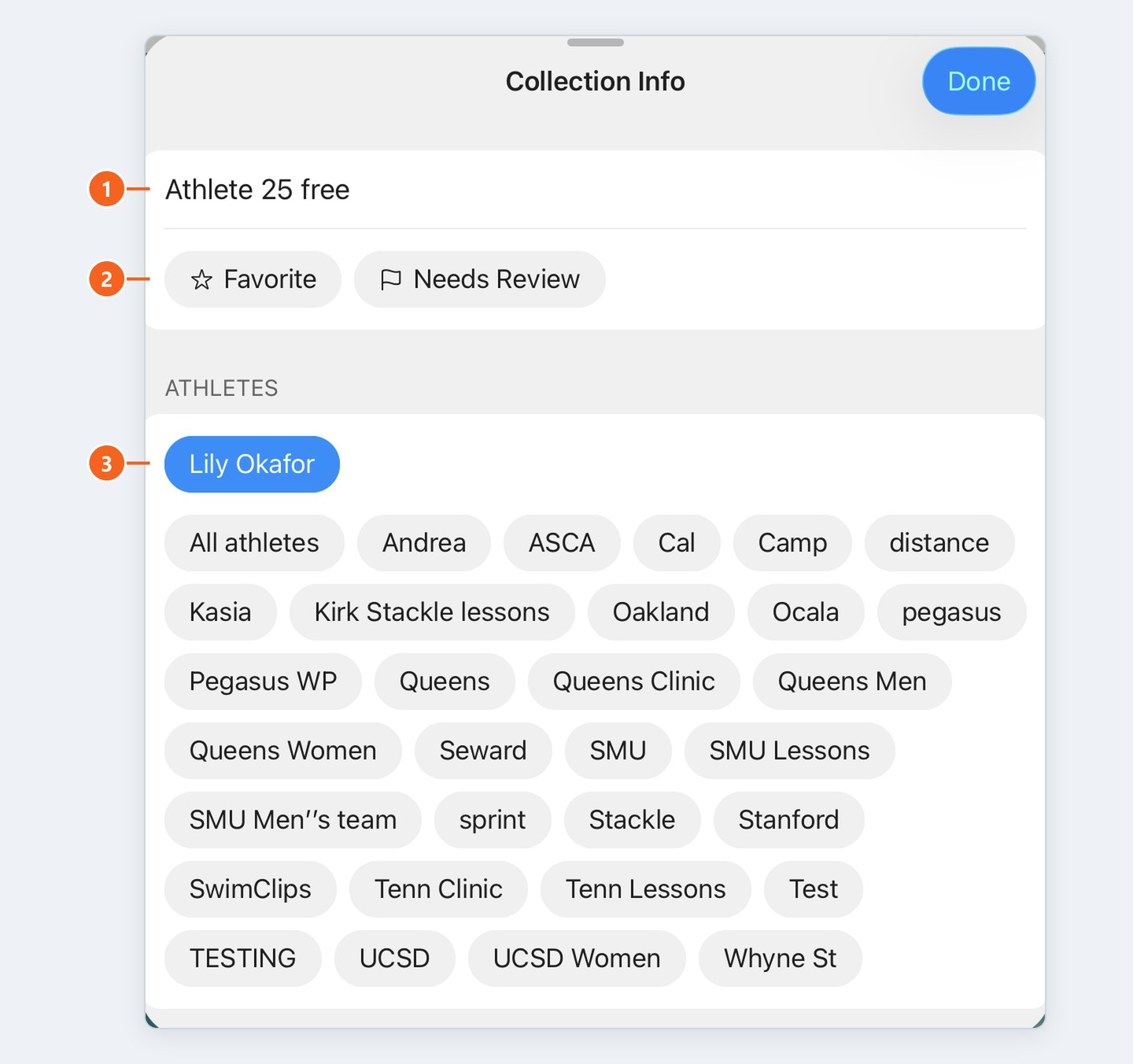
Everything about a collection lives in one place: Collection Info. Open the collection and tap the ⓘ icon in the top bar.
Name it
The first line is the collection's name. Type over it, for example "Athlete 25 free" or "Breakout drill", and tap Done.
Assign swimmers
Under Athletes, tap a swimmer to assign the collection to them. Their name turns blue.
More than one swimmer: you can assign a collection to several swimmers after it's recorded. Handy for relay takeoffs, or a long recording with a few swimmers in it.
Move it: recorded under the wrong swimmer, or under No athlete? Tap the right name here.
Imported video and ZIPs: the quickest way to file them under the right swimmer.
Tag the swim
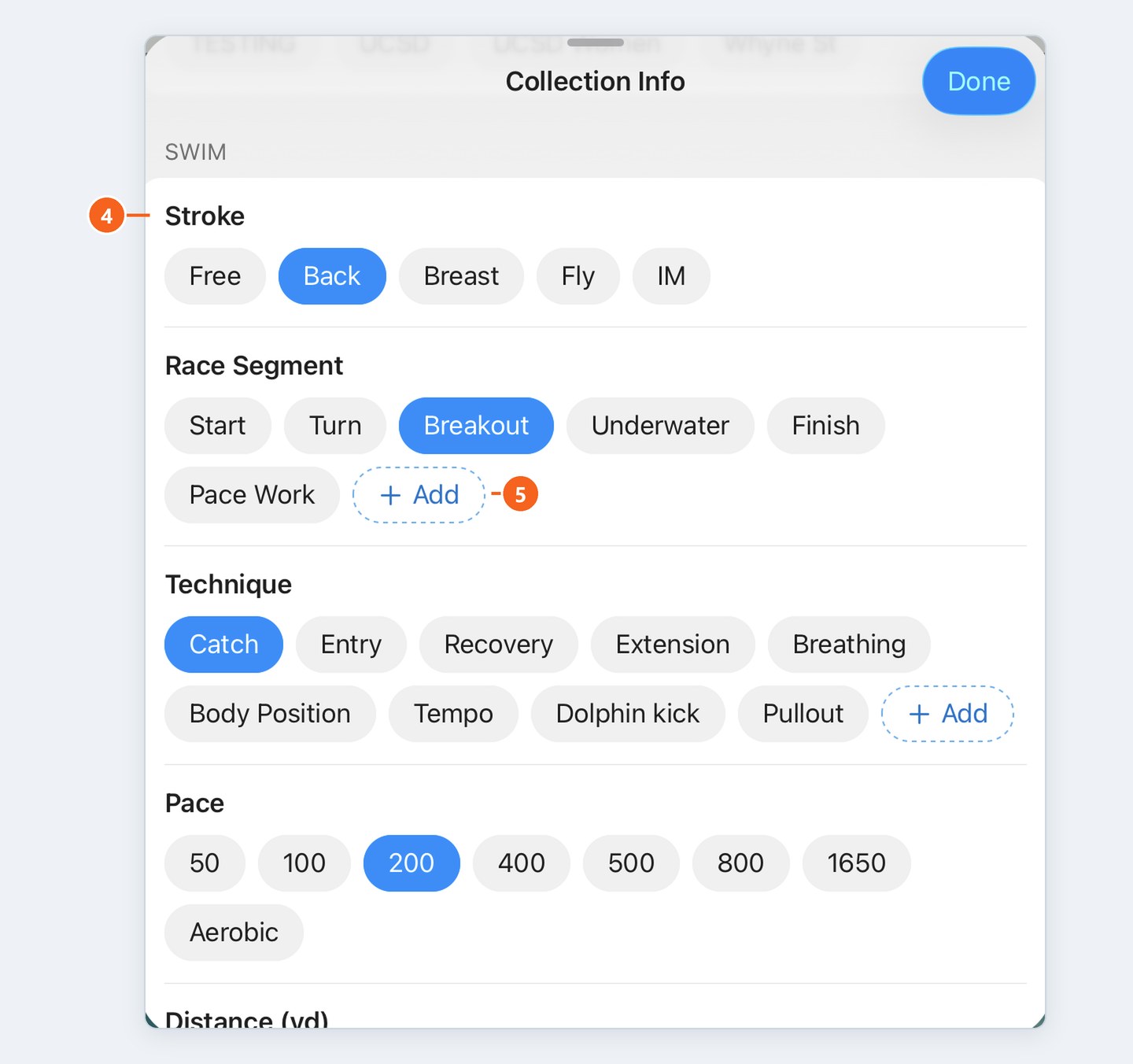
Scroll down for tags. Tap any that apply:
Stroke: Free, Back, Breast, Fly, IM
Race Segment: Start, Turn, Breakout, Underwater, Finish, Pace Work
Technique: Catch, Entry, Recovery, Extension, Breathing, Body Position, Tempo, Dolphin kick, Pullout
Pace, Distance and Pool Size (SCY, SCM, LCM)
Missing a tag? Tap + Add in that category to make your own.
Notes, flags and your own fields
Note: anything you want to remember about the swim.
Favorite and Needs Review: mark collections to come back to. The star in the top bar also favorites a collection.
Your fields: tap + Add Field to track something we don't, like a meet name or a drill number.
Heads up: you can't filter by tags, Favorite or Needs Review yet. That's coming, and anything you tag now will be ready for it.

Find and tidy collections
Search (magnifying glass, top right of Browse) looks up swimmers by name.
Delete a collection: in the Browse list, press and hold it.

